
Film Studio
User manual
- 1. Introduction
- 2. Getting started
- 3. Making a new film
- 4. Dramas
- 5. Series
- 6. Documentaries
- 7. Checks during making
- 8. Progress and costs
- 9. Voices
- 10. Pictures
- 11. The finished film
- 12. For the administrator
- 13. The command line
- 14. Troubleshooting and questions
Introduction#
Film Studio turns written stories into dramas, series and documentaries — with pictures, voices, dialogue, music, subtitles and credits. You give the text or the topic, choose how the film should look and sound, check the work at a few stops along the way, and download a finished video that is ready for YouTube or Facebook.
What you can make#
| Kind | What is in it | Chapter |
|---|---|---|
| Drama | scenes and dialogue; every character in a voice of their own, talking AI videos if you like | Dramas |
| Narrated film | one narrator tells the whole story | Making a new film |
| Series | episode by episode, the same characters and places; "previously" and "next time" | Series |
| Documentary | researched facts with their sources; maps, a timeline, names on screen | Documentaries |
| Reel / Short | a short vertical video from any film | The finished film |
What the studio does for you#
- Reads the story in any language and, if needed, translates it into the film's language (13 languages).
- Plans the film: picks a length that tells the story well and writes a screenplay — scenes and shots, each with a line of narration and a description of its picture.
- Draws the characters once (portraits), so they look the same in every shot.
- Paints a picture for every shot in the style you choose — natural, cartoon, watercolour, patachitra … or like a sample picture of your own — checks each picture with an AI, and paints a clearly wrong one again.
- Records the voices — in a drama every character in a voice of their own (in lip-synced AI videos if you like), in a narrated film one narrator.
- Adds music and sound effects, subtitles, a title card and end credits.
- Renders the film with slow camera moves toward the faces, and even, YouTube-level sound.
- Prepares everything for posting: titles, description with chapters, tags, thumbnails (and a thumbnail maker with 38 designs), a Facebook post, captions — and, when you ask, a vertical Reel / Short.
- Makes the same film in other languages with the same pictures, so they cost nothing again.
How a film is made#
| Step | What happens | Do you check it? |
|---|---|---|
| Translation | The story is translated into the film's language | Yes, if the story is in another language |
| Length | The AI suggests a length | Yes (optional) |
| Script | Scenes, shots and narration | Yes (optional, recommended) |
| Portraits | The main characters are drawn | Yes (optional) |
| Pictures, narration, music | Made one after another | You can change any shot afterwards |
| Film | Rendered and packaged for posting | Watch, download, post |
Nothing expensive is made before you have seen the cost: the settings page shows an estimate, and the film stops at its budget limit.
Who pays for the AI#
The studio uses AI services (Google Gemini and others). They need API keys, and each picture, voice minute and script costs a little. A typical 5-minute film costs about $1–5 depending on the quality you choose; a free test mode costs nothing. See Costs and progress.
Where films are made#
- On your own PC with the Studio Agent (the usual way on the public website): your keys stay on your PC.
- On the server, if the website's administrator has set it up for you.
- On the PC that runs the studio itself (the standalone version, "Running on this PC").
The next chapter explains how to get started in each case.
Getting started#
Your account#
- Open the website and choose Sign up (if sign-up is open). Confirm your email address.
- Log in. Under Settings → Account you can change your name and password and turn on two-factor log-in (recommended).
- Choose the website's language with English / বাংলা at the top; it is remembered for your account. This manual follows that language too.
Where your films are made#
Look at the badge at the top right:
| Badge | Meaning |
|---|---|
| My PC: online | Your PC's Studio Agent is connected; films are made on your PC |
| My PC: offline | Start the Studio Agent on your PC, or the films wait |
| Made on the server | The administrator has your films made on the server; no PC is needed |
Connecting your PC (Studio Agent)#
- Install Python on the PC if it is missing (python.org/downloads — tick “Add python.exe to PATH”).
- On the website: Settings → My PC (Studio Agent) → Download Studio Agent. Unzip it anywhere (for
example in Documents): it has two folders side by side,
AgentandFilm_Studio(the film maker). - Double-click
Agent\Start_Agent.bat. The first start takes a few minutes; it asks for your API keys (at least Gemini — press Enter to skip the others). - On the website press Connect a PC: a code appears (valid for 15 minutes, works once). Type it into the agent (the website address is already filled in — press Enter).
- Keep the agent window open while films are being made. The badge turns online.
Your API keys stay on your PC (in Film_Studio\.env); the website never sees them. To change them later,
edit that file with Notepad, or start the agent with Start_Agent.bat --keys.
Updates: when the website has a newer film maker, Update appears next to your PC in Settings → My PC.
Press it: the agent updates itself before its next film and starts again. Your keys, films, stories and your
own files stay; if you had changed config.yaml, yours is kept and the new one is saved as config.yaml.new.
Your own folders instead (developers): with the FILM_STUDIO_WEB git folder and a Film_Studio folder next to
it, run setup.bat and Start_Agent.bat there; a Film_Studio folder elsewhere is set with
FILMSTUDIO_HOME= in env.web. Such an agent is updated with copy_film_maker.bat and git.
API keys#
A Gemini key is enough to start: it writes the script, paints the pictures and can voice the narration.
| Key | What for | Where to get it |
|---|---|---|
GEMINI_API_KEY |
Script, pictures, expressive voices, picture checks | aistudio.google.com → Get API key |
GOOGLE_TTS_API_KEY |
Google Chirp 3 HD voices (1 million characters a month free) | Google Cloud → Text-to-Speech API |
SARVAM_API_KEY |
Sarvam voices (most native Bangla and Hindi) | dashboard.sarvam.ai |
OPENAI_API_KEY, ANTHROPIC_API_KEY, OPENROUTER_API_KEY, DEEPSEEK_API_KEY |
Other script writers and picture AIs (optional) | each company's website |
PEXELS_API_KEY, PIXABAY_API_KEY |
Free stock video clips (optional) | pexels.com/api, pixabay.com/api |
- On your PC: the keys go in
Film_Studio\.env. Settings → API keys → Test checks each one. - Films made on the server with your own keys: enter them in Settings → Your API keys. They are stored encrypted and only their last 4 characters are ever shown.
Google Cloud Text-to-Speech key (for Chirp voices)#
- console.cloud.google.com → choose or create a project, and turn on billing (the free part is used first).
- APIs & Services → Library → search Cloud Text-to-Speech API → Enable.
- APIs & Services → Credentials → Create credentials → API key.
- Edit the key: API restrictions → Restrict key → Cloud Text-to-Speech API; Application restrictions: None.
- Put it in
.envasGOOGLE_TTS_API_KEY=….
Your own lists (Settings)#
- Pronunciations — words the voice says wrong and how they should sound, used in all your films (see Voices).
- Fonts — your own fonts for the film name and the thumbnails.
Before your first film#
- Settings → This PC: checks ffmpeg, fonts and subtitle support.
- Try the Offline test quality once: it makes a whole film for free with test pictures and a test tone, so you can see every step without spending anything.
Making a new film#
On Home press New film, then choose Drama, Narrated film or Documentary at the top (see Dramas, Documentaries; episode by episode: Series).
1. The story#
- Upload a plain-text file (
.txt, any language, up to 2 MB), or pick a story already on the PC. - A story needs at least about 300 characters.
2. The settings page#
Every choice shows its effect on the cost estimate on the right before anything is spent.
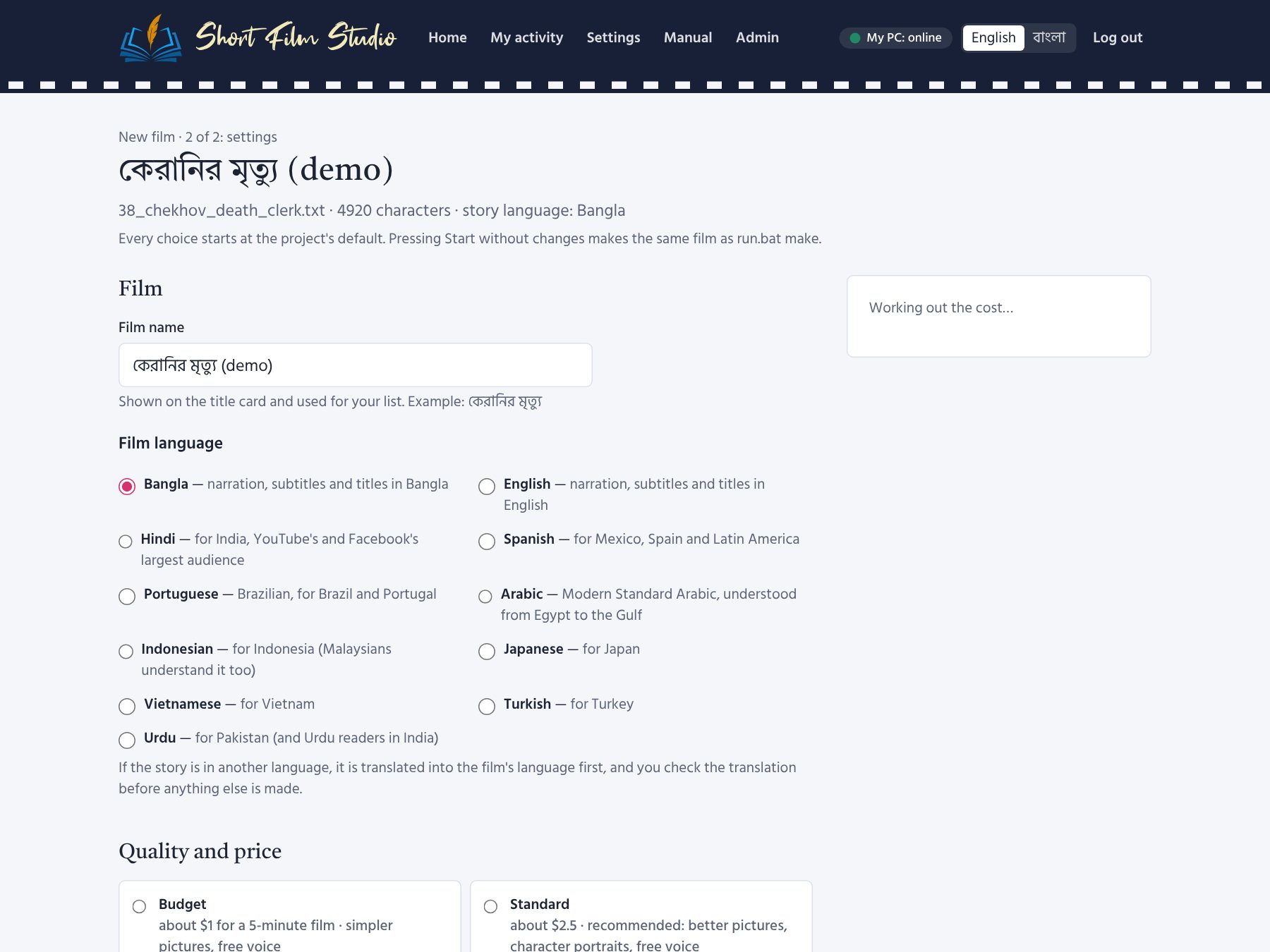
Film#
- Film name — for your list (the title card uses the script's title).
- Film language — Bangla, English, Hindi, Spanish, Portuguese (Brazil), Arabic, Indonesian, Japanese, Vietnamese, Turkish or Urdu. A story in another language is translated first and you check the translation.
Quality and price#
| Profile | About (5 min) | What you get |
|---|---|---|
| Budget | $1 | simpler pictures, free voice |
| Standard | $2.5 | better pictures, character portraits, free voice (recommended start) |
| Premium | $5.5 | best pictures and an expressive AI voice |
| Offline test | $0 | test pictures and a test tone |
Changing the profile resets the choices below to that profile's defaults, except the ones you changed.
Length and video size#
- Automatic length: the AI reads the plot and suggests 1.5–15 minutes; or set a fixed length.
- Video size: 1080p for YouTube (recommended), 720p, 2K, 4K; reels (vertical) for Shorts/Reels/TikTok; square and portrait for Instagram. Sizes of the same shape share their pictures.
How the pictures are painted#
Natural (cinematic painting, as before) is the default. Ready-made looks: Cartoon, Child's drawing,
Storybook watercolour, 3D animation, Pen and ink, Folk brush, Patachitra, Anime,
Oil painting, Comic book, Pencil sketch and Paper cut-out. Each card shows the same scene painted
in that style (once the admin has run run.bat styles --examples on the PC, about 13 pictures).
With Like my sample, upload a sample picture (JPG, PNG or WebP, up to 12 MB). The AI looks at it once and writes down its style (under a cent), and the sample goes along with every picture it paints — only its lines, colours and way of painting are taken, never its people or objects. Use a picture you are allowed to use.
The character portraits are painted in the same style. Each picture remembers its style: after you change the style, the pictures and portraits painted in another style are painted again (and paid for again) the next time the film is made.
Sample shots: not sure about a style? While the film waits for you on the Shots page (the script) or the Characters page (the portraits), press Paint sample shots: three shots spread over the film are painted in the chosen style (a few cents), and the film waits there again. Like them — continue, and only the other shots are painted. If not, change the style here and ask again: the same three shots are painted anew in the new style.
Pictures#
Appears when a finished film of the same story exists: Use the pictures of a film already made makes this language's film with that film's pictures (see The finished film).
AI#
- Writes the script — Gemini (default), Claude, OpenAI, OpenRouter, DeepSeek, Ollama (free, on the PC).
- Paints the pictures — Gemini, OpenAI, OpenRouter (GPT Image, Grok, FLUX, Seedream …), only your own pictures, or free test pictures.
- Draw each main character first — portraits keep faces the same in every shot (+4 pictures).
- An AI checks every picture — and paints a clearly wrong one again (see Pictures).
- If an AI has no balance left, use the next one that has a key — the film goes on instead of stopping.
- Second pass that polishes the narration — about $0.02.
Narrator#
The voice, its speed, how old it sounds, and (for Gemini voices) the reading style in your own words. Press ▶ Listen to hear a sample. Which voices sound most natural in each language, and what they cost, is in Voices. Tick The characters speak their dialogue in their own voices for an audio-drama feel.
Subtitles and music#
Subtitles burned into the picture or as a switchable track; music (one track or one per scene) and its volume; end credits; and whether the credits mention AI.
Your channel's intro#
Your channel's intro before the film: a short video of your channel — its name and logo — that plays first, with its own sound; then the title card and the film (the music starts after it). Choose one of your intros, or None. A new film takes the intro marked ★ default.
Your intros are under Settings → Intros: add a video (MP4, MOV or WEBM, up to 60 MB, best 4–10 seconds, landscape; at most 20 seconds are played), watch it, rename it, make it the default (★) or remove it. A film of another shape (Reels, square) shows the intro whole, with bands at the sides. To add it to a film already made, choose it here and press Make the film again.
Your channel's end card (Reels and vertical films): a short portrait video — your logo and name, “like, share, subscribe” — played at the end of every Reel / Short made from this film, and after the film itself when it is vertical (Reels, portrait). A landscape film ends with its credits as before. Add end cards under Settings → Intros → End cards (portrait, 1080×1920); the one marked ★ is the default for new films.
Film name: font and size#
Choose the font of the film's name on the title card, “The End”, the thumbnails and the Reel, and its size (60–160%); the preview below shows it at once. Only fonts with the letters of the film language are offered. “The film language's own” keeps it as before.
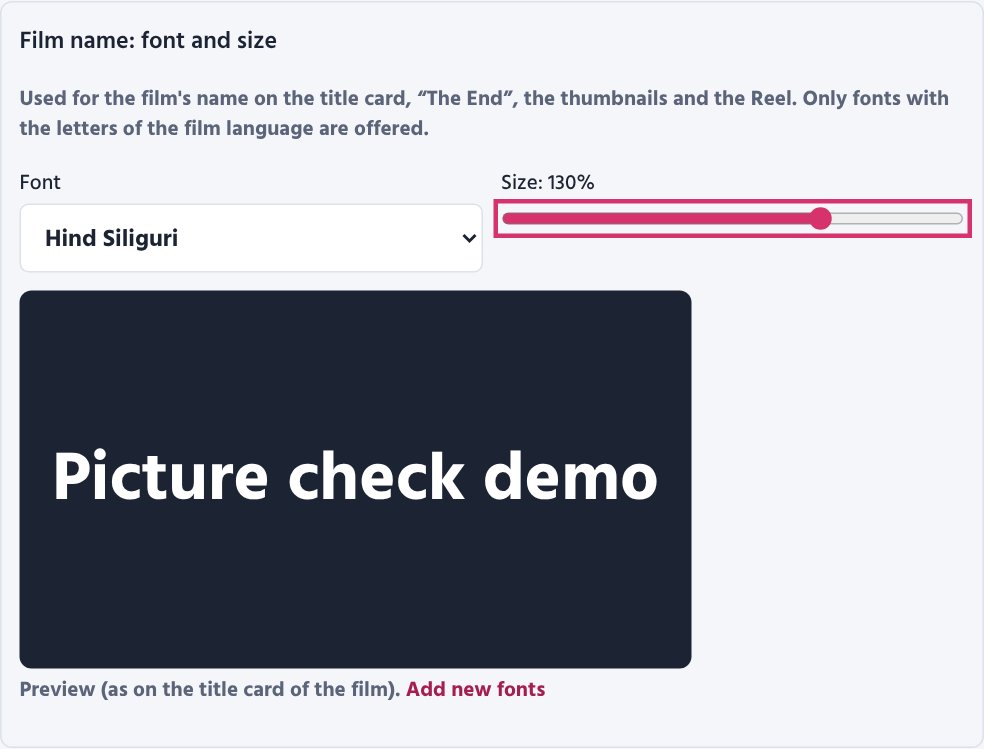
To add new fonts: add a .ttf or .otf file in Settings → Fonts (at most 15 MB; on a server only the
Admin can), or put the file straight into the Film_Studio\my_fonts\ folder. Use fonts whose licence allows them
in videos (for example Google Fonts). A film made by the Studio Agent takes its chosen font along to the PC.
The list shows each font by the name the video maker finds it by — it may differ from the file name or the
font's advertised name (for example “FN Dukkho Bilashi”). After changing the font press Make again: only the
title card, thumbnails and video are made again, with no AI cost.
Cost and checks#
- Budget limit — the film stops before spending more than this.
- Approve the translation without checking it — off by default (recommended).
- Check the translation with a second AI — lists omissions, wrong meanings and name spellings.
- Stop for the length / script / portraits — the review stops (see Checks during making).
Press Save to keep the settings, or Start to begin.
Dramas#
A new film is a drama unless you choose otherwise: the AI turns the story into scenes in which the characters speak to one another, each in a voice of their own, with a narrator only where the story needs one. The three buttons at the top of New film choose: Drama, Narrated film (one narrator tells the whole story) or Documentary.
What makes a good drama#
- Two to four characters who talk to each other. With many characters, voices and looks are hard to keep apart.
- Short, natural lines. A shot with more than 10 seconds of words does not become a talking video.
- A clear turning point: someone learns, recognises or decides something. Give the moment a visible sign (a scar, a ring) — "she recognised him" alone does not show the viewer how.
- A script-style text (Name: line) works too.
The Script page#
Each shot lists who says what: the speaker, the words, and how they are said ("whispering, afraid"). Change, delete or add any line; choose the narrator for a line of narration. The captions show each speaker's name in a colour of their own.
The characters' voices#
In a drama every character always has a voice of their own, chosen by gender, age and manner. Change any of them on the Characters page.
Talking videos (AI video)#
Set a shot to AI video on the Shots page: if only characters speak in it (no narrator), Gemini Omni makes a video from the shot's picture in which they say their lines themselves, lips in sync. Such shots are marked 🗣. The video's own sound is the shot's voice — no voice is paid for.
- Cost: about $0.07 a second at 720p (about $0.42 for a 6-second shot). A drama's limit is $30 (Settings).
- A video once made stays as it is. To make it again press Remake video on the shot; first you can read and change its prompt in the box — your wording then stays that shot's prompt.
By hand with Google Flow#
Pack for Google Flow on the Shots page gives each shot's picture (the first frame) and its direction (txt). At labs.google/flow: Video → Frames, model Veo 3.1 (Fast or Lite), the picture as the start frame, the whole txt as the prompt. Download the video and give it to that shot with Use my clip: a clip with sound keeps its own voices.
Good to know#
- Some models will not make talking videos of children.
- Lips do not always match perfectly; short lines work best.
- YouTube asks you to mark "Altered or synthetic content" when AI people look real; the posting package says so.
Series#
A series is made episode by episode. Each episode is an ordinary film, but every episode keeps the same characters (faces, clothes and voices), the same places, and knows what happened before.
Starting#
- Series on the home page → a name, and whether each episode is a drama or a narrated film → Make the series.
- Add episodes in one of two ways: - One episode: its season and number, and the episode's story or script (.txt). - A whole novel: the whole book at once. It is cut between its chapters into episodes of about the same length (free). The next page has a tick before every chapter: a tick starts an episode there. Move them as you like, then Make these episodes.
- A new episode gets the last episode's settings (picture style, voices, size, intro); change them on its Settings page.
The series' memory (story bible)#
At the bottom of the series page:
- Characters: portrait, name, role, look (for the pictures, in English), alive or not, and voice.
- Places: a picture of each place, from the episode where it was first seen.
- The story so far: each episode's summary.
It fills itself after each episode's script (one cheap AI call). When the next episode is written the AI reads it: the same ids and looks for the same characters, the same places, and what happened before. Correct anything that is wrong here and Save.
- A character's portrait is painted once; later episodes use it at no cost.
- A voice chosen on an episode's Characters page becomes the character's voice for the whole series.
- A place seen in an earlier episode is given to the picture AI so it looks the same.
"Previously" and "Next time" (optional)#
- Previously: tick it in the series' memory and each episode opens with the episode before's summary, over two of its pictures. Only that voice is paid for.
- Next time: once the next episode has its script and pictures, Add "next time" appears next to the episode before. It ends that episode with a glimpse of the next; then press Make the film again on it.
The continuity check#
An episode's Script page warns when a character who died or left the story speaks again, or a name, a look or an event does not fit the episodes before. Fix the shot — or the series' memory, if that is wrong.
On YouTube#
- Each episode's title is "Series | Episode 2 — its title"; its youtube.txt says which playlist and position.
- YouTube playlist (.txt) on the series page: the playlist's name, description and the episodes in order. Make the playlist on YouTube once.
Documentaries#
A documentary is a film about something real. It tells only facts that have a source and that you approved.
1. The topic#
New film → Documentary: write the topic ("The partition of Bengal, 1905"). Add your own notes, what the film must say, books and web pages if you like, or a .txt file. Your notes come first.
2. The research#
Gemini searches the web with Google Search and gathers 20–40 facts, each with the pages it came from, and the places (for maps), the dates (for the timeline) and the people (who is alive today). Cost: $0.014 a search, a few cents for the whole research.
3. Your approval (the Research page)#
The film stops and the Research page opens:
- Under each fact: its sources (links), or "your notes".
- Untick a fact to leave it out; correct its words.
- A fact with no source is left out unless you tick it.
- People: someone ticked "alive today" is never painted or voiced.
- Approve and write the script: the script is written only from the facts you kept (at least 3).
4. The script and the pictures#
Each shot shows:
- A reconstruction: an AI-painted picture, marked "Reconstruction" in a corner so viewers never take it for real footage.
- A map: the real map, drawn from OpenStreetMap (exact, free; the PC needs the internet), with the places marked and named. Any map shot can be switched to an AI-painted map on the Shots page (in the film's style, less exact).
- The timeline: the dates on a line, the one being told in colour.
- Names on screen: when a person is introduced, their name and role at the bottom of the picture.
- Sources: the list of every source at the end, and with links in the YouTube description.
Maps, the timeline and the sources card are drawn without an AI, at no cost.
Good to know#
- The AI can be wrong: open the sources and check the facts that matter.
- Pictures and old footage have copyrights of their own; give your own or free pictures as "My own picture".
- Take care with living people: keep only checked facts.
Checks during making#
The film stops at a few points so you can look before money is spent on pictures and voice. The film's page shows Waiting for you and a button to the right page. Tabs at the top of every film: Progress · Script · Characters · Shots · Music (and, when finished, Publish · Other languages).
Translation#
For a story in another language. Read and correct the translation in the editor, then Approve.
- Name spellings are listed so each name is written the same way everywhere.
- With Check the translation with a second AI on, a second AI compares it with the original and shows a score and notes: left out, added, wrong meaning, names, clumsy wording. Use the suggestion fixes it with one click; Done / not a problem hides the note; Save and check again re-checks your edits.
- A much shorter paragraph than the original is flagged for free (something may be missing).
Length#
The AI suggests a length with its reason. Accept it or type another; the cost updates.
Script#
Every scene and shot with its narration and picture description. You can edit any text, and change the shape: split a shot at the cursor, merge with the next, add or delete shots and scenes, move shots. (The shape can change only before pictures or voice exist.) Then Approve the script.
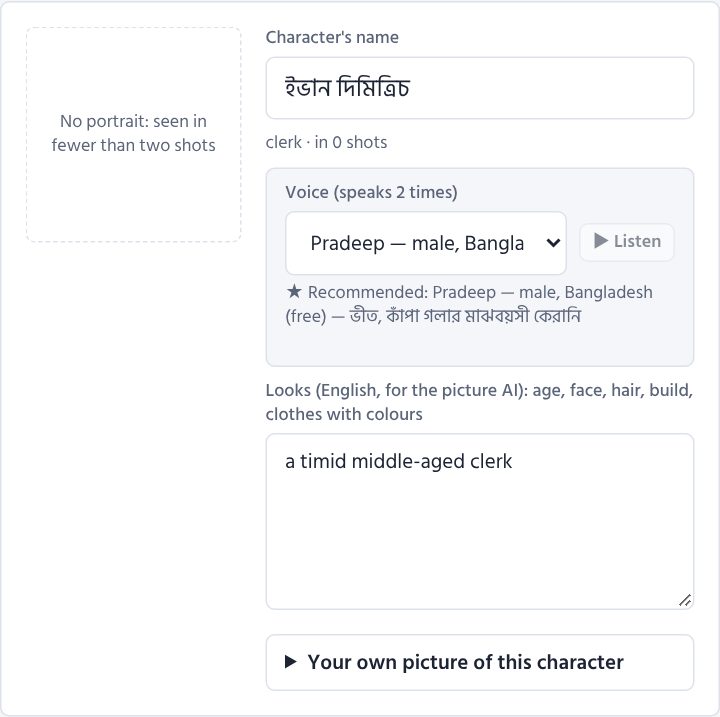
Characters#
Each character's name, look (English, for the picture AI) and portrait.
- Redraw this portrait, or change the look and save — the portrait is drawn again.
- Your own picture of this character: use it as the portrait (free), or let the AI paint the portrait from it in the film's style.
- Voice (with character voices on): the recommended voice ★ for each speaking character, ▶ Listen, and any other voice to choose. Change voices here before the narration is recorded.
Then Approve and make the shot pictures. Not sure about the picture style yet? Paint sample shots here first (see below).
Shots#
Every shot's picture, narration and voice — during making and after.
- Picture style per shot: automatic, picture, video clip (stock), or AI motion (the picture comes alive).
- Change this shot: your own picture or video clip, Remake picture, Record voice again.
- Sample shots (while the film waits here, before its pictures): three shots painted in the chosen picture style; like them — continue; if not, change the style and ask again (see Making a new film).
- AI picture check: each picture's score; problems in plain words; a list of shots worth a look; and The weakest pictures, lowest score first, to paint again together (see Pictures).
- Poems: the recitation director's reading — the metre and the mood at the top, and how each stanza should be said under it — and A note for the reciter on each stanza (see Voices).
- Narration check: The narration differs from the text under a shot whose recording says more or less than its text (after one automatic retry), and older recording on a recording kept although its text or voice changed; Make everything again → Outdated narration records only those again.
- The voice sounds different in …: the shots whose voice is measured higher, lower, brighter or duller than in the others (a character's quoted words and shots with your note are not counted), each marked voice sounds different; Record these again records only them.
- The recording before: a shot recorded again keeps its earlier recording. Both play under the shot; Keep the one before puts the earlier one back on the next run (no new recording, no cost), No, keep the new one changes your mind.
- Quick draft (top of the page): a small, fast video (480p, no slow zoom) to check the timing, the voice and the subtitles. Shots marked to record again are recorded first; the finished film is not changed. The draft plays at the top of the Shots page; when all is right, Make the film again.
Music#
Upload your own music for the film or per scene. Without your own music, tracks from the music library are chosen to match each scene's mood.
Sound effects#
Your sound library is yours for every film: add a sound with a name (English names like thunder or heavy rain let the AI ideas find it), listen to it, remove it.
To keep a big library easy to search: - Tags — under each sound, write a few words separated by commas, in any language (বৃষ্টি, রাত, শহর or rain, night), then Enter or Save; a new sound can get its tags as it is added. The AI ideas find your sounds by their tags too. - ★ Favourite — press the star beside a sound: favourites come first in the library and in every shot's list. - Search by name or tag filters the list as you type; the tag buttons above it (with how many sounds have each) show only the sounds with that tag — press more than one to narrow it further; ★ favourites shows only your favourites.
Sounds per shot — a row for every shot, with three choices:
- Music — normal; rises slowly (the music swells over about 3 seconds, for a moment that builds up); or rises suddenly (at once, for a shock). Either way it settles back to normal over about 4 seconds after the shot.
- Sound 1 and Sound 2 — two sounds can play in one shot together, e.g. thunder and rain. Click the box: a list opens with a search box — type a few letters of a name or a tag (★ favourites first), ▶ to hear a sound, ↑ ↓ and Enter to choose it; + Upload a new sound… adds one right there. Under each sound choose:
- how loud — loud (a sudden event: thunder, a gunshot, a slammed door), normal (clear, under the voice: a knock, a bell, a dog) or background (an atmosphere, softly: rain, wind, a river, a crowd, birds);
- when — once, at the start (as the shot begins, at most 15 seconds) or through the shot (it repeats for the whole shot; the same sound on the next shots goes on without a break).
For example, a stormy night: shots 11–13 have rain · background · through the shot, and shot 12 also thunder · loud · once, at the start with the music rises suddenly — the rain goes on over the three shots and the thunder claps as shot 12 begins.
AI ideas appear after the film's music step, under each shot's narration (AI: heavy rain · background). Use the AI ideas puts the ones your library has a sound for into empty places — your own choices stay; the ones you have no sound for are listed with a Find free link: download it, add it to your library with the same name, and use the ideas again.
Save the sounds, then Make the film again: only the video is put together again — the sounds cost nothing, and no picture or voice is made again.
Progress and costs#
Progress#
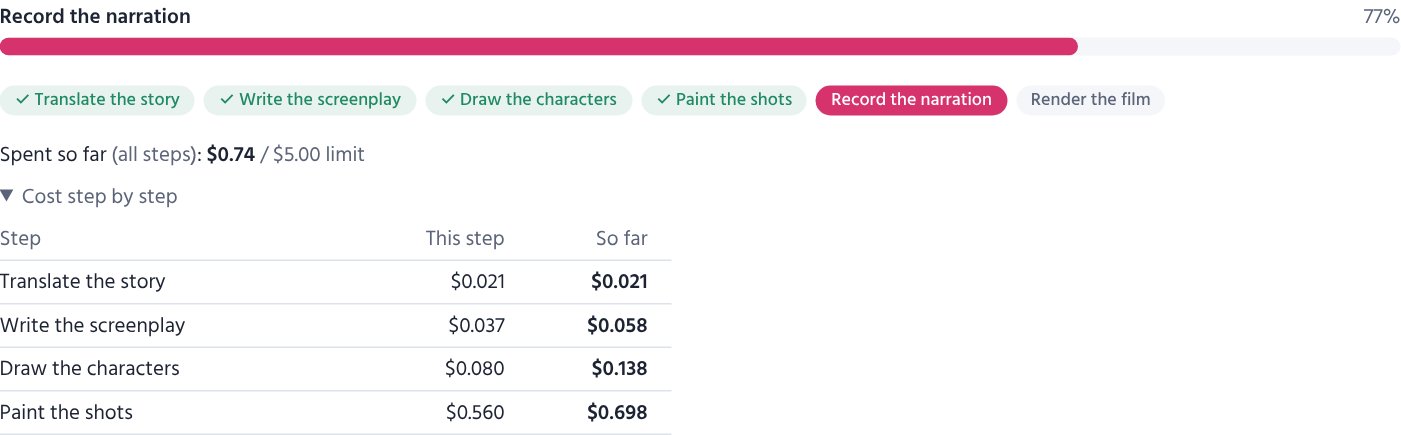
The Progress tab shows each step as it runs (pictures 12 of 40 …) and the cost so far.
Spent so far (all steps) always adds up every earlier step and every earlier run — a film that paused for a check and goes on does not start again from zero. Below it, Cost step by step lists each finished step with its own cost and the total up to that step. A step that stopped half-way and was finished later shows both runs together. The command window and the “Details” log show the same after every step (Cost of this step … · all steps so far …).
| Button | What it does |
|---|---|
| Pause | stops after the current step; Resume goes on from there |
| Cancel | stops; finished work is kept, so starting again does not pay twice |
| Make again | after changes on the Script, Shots or Music page |
Work that is already done is never paid for twice: pictures, voice and clips are kept and reused.
When the film stops by itself#
- Budget reached — raise the budget on the settings page and resume, or make fewer shots.
- Daily limit of an AI (for example Gemini's free daily quota) — the page counts down to when it can go on; press Resume then.
- No balance left at an AI — with use the next AI that has a key on, the next one takes over and the progress page says so; otherwise the film waits.
- Failed — the message says what went wrong; most problems are a missing or wrong key.
The page also warns about things the film went on without: for example The font “…” was not found, so the video uses another one — check the font's name on the settings page, or add the font (Settings → Fonts).
What costs what (approximate)#
| Item | Price |
|---|---|
| Picture (Gemini, 1K) | about $0.04 each |
| Character portrait | one picture each |
| AI picture check | a fraction of a cent per picture (+ one picture when painted again) |
| Script, translation, publishing words | a few cents |
| Free voices (Edge) | $0 |
| Google Chirp 3 HD | 1 million characters a month free, then about $0.025 a minute |
| Gemini 3.8 Flash voice | about $0.015 a minute (about $0.028 from 2027) |
| Sarvam Bulbul | about $0.03 a minute |
| AI motion | by the second; shown on the Shots page |
| Sample shots | three pictures (about $0.12) |
| Recitation director (poems) | a cent or two a poem |
| Your own recitation as a poem's voice | $0 |
| Example pictures of the styles (admin, once) | 13 pictures |
For a 5-minute film the pictures are most of the cost (about 35–45 pictures). The voice is cheap: recording a whole 5-minute narration again costs about $0.08 (Gemini) or $0.15 (Sarvam), and pictures are never remade when only the voice changes.
What is left on your AI accounts#
Settings → AI balances shows what is left where the company tells it: OpenRouter and DeepSeek. Google (Gemini, Chirp), OpenAI, Anthropic and Sarvam show it only on their own pages — the list links there. A balance under $1 is marked low.
- Films made on your PC: the Studio Agent asks with the keys on your PC and sends only the numbers (never a key), every 30 minutes and when you press Check now.
- The same section shows what your films cost this month by the studio's own count.
- On the PC:
run.bat balances.
Saving money#
- Try new settings with a short test story and free test pictures first.
- Not sure about a picture style? Paint sample shots (three pictures) before the whole film is painted.
- In a finished film, paint again only the weakest pictures (Shots page), not all of them.
- Make other languages from a finished film: the pictures are reused for free.
- Use 720p for quick tests; sizes of the same shape share their pictures.
- Keep Draw each main character first on: fewer wrong faces means fewer pictures painted again.
Voices#
The four kinds of voice#
| Kind | Sounds | Follows directions | Cost |
|---|---|---|---|
| Gemini (expressive) | understands the meaning: emphasis, emotion, pauses | yes — style, age, your own words | about $0.015 / min |
| Sarvam Bulbul | most native Bangla and Hindi pronunciation (Kolkata accent) | speed only | about $0.03 / min |
| Google Chirp 3 HD | natural in English and many languages; weaker in Bangla | speed only | 1 M characters/month free |
| Free (Microsoft Edge) | clear but flat, like a news reader | speed and pitch | $0 |
Most natural by language#
- Bangla: Gemini, then Sarvam. Chirp and the free voices sound less natural in Bangla.
- Hindi: Gemini, Sarvam and Chirp.
- Other languages: Gemini and Chirp.
The settings page shows this advice under the voice list for the language you choose.
A 7-second sample does not tell the whole story: try a short test film with the voice you like, using free test pictures — it costs only a few cents and you hear it on your own text.
Voice options#
- Speed — slower or faster than normal.
- How old the voice sounds — young, middle-aged or old (Gemini is told; free voices change pitch and speed).
- Reading style in your own words — for Gemini voices, in any language, e.g. a tired old village storyteller.
- Gemini model — 3.8 Flash (most natural, recommended), 3.8 Flash-Lite (cheapest), or the older 3.1.
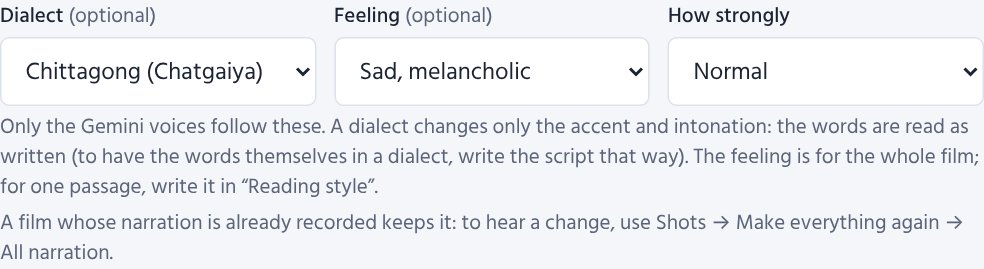
- Dialect (Bangla films, Gemini voices, optional) — Old Dhaka, Chittagong, Sylheti, Barishal or Varendri/Rajshahi. Only the accent and intonation change: the words are read as written. To have the words themselves in a dialect, write them that way on the Script page.
- Feeling and How strongly (Gemini voices, optional) — happy, sad, excited, tender, firm or calm, subtle to strong, for the whole film. For one passage only, describe it in Reading style in your own words. A film whose narration is already recorded keeps it: to hear the change, press Shots → Make everything again → Outdated narration (only those shots are recorded again, and paid again).
An AI listens to the narration#
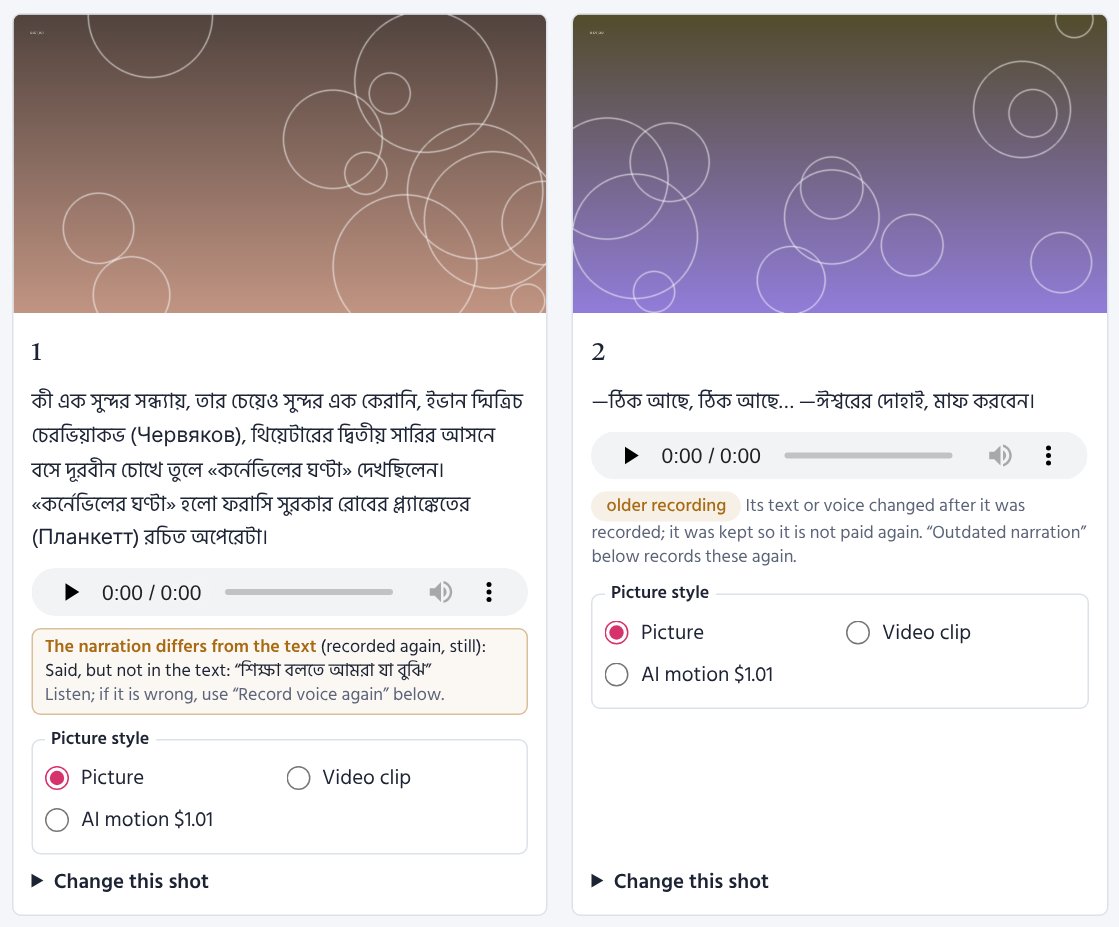
An expressive voice now and then says words that are not in the text, or leaves some out. So an AI listens to every new recording made with a Gemini voice and compares it with its text. A shot that is clearly wrong is recorded once more and the better recording is kept (a fraction of a cent per shot; small differences of pronunciation do not count). If it is still wrong, the Shots page says so under the shot — what was said that is not in the text, or what was left out — and Record voice again makes it once more.
The AI writes down what it hears, and the words are compared with the text here, word by word, so an old-style (সাধু) word heard a little differently is not counted; a recording heard wrong is listened to a second time before it is recorded again. If the AI still heard a correct recording wrong, press ✓ The recording is right under the warning: it goes away for that recording (a new recording is listened to again).
One voice throughout. Each shot is recorded on its own, and now and then one comes out a little higher, lower, brighter or duller than the rest — most often where the feeling of the lines is strong. So after the narration the voice of every shot is measured (free, on your computer); a shot that sounds clearly unlike the others is recorded once more and the take closer to the others is kept. Each shot is tried only once. In a poem, the recitation director also keeps one narrator's voice from the first line to the last: the feeling of a stanza shows only in the pace, the pauses and the words leaned on — never in a character's or a changed voice. Where a character's own words are quoted (“'Oh! I am dying of cold …'”), the same voice rises a little — slightly higher and livelier — only for the quote, as a good reciter does; the Shots page marks such a shot, and the voice-match check leaves it (and any shot with your note) as it is.
A recording kept although its text or voice was changed later (so as not to pay twice) is marked older recording on the Shots page; Make everything again → Outdated narration records only those again.
Characters in their own voices#
With The characters speak their dialogue in their own voices on:
- After the script is written, the AI finds the words each character says aloud and describes the voice each needs: female or male; child, young, middle-aged or old; warm, soft, calm, firm, lively or gruff.
- A voice is recommended for each — never the narrator's, a different one per character while there are enough, and from a kind that sounds natural in the film's language (when the narrator's kind does not, the most natural kind you have a key for; then only the dialogue costs that voice's price).
- On the Characters page you can listen and choose another voice for any character.
- The narrator reads everything else. The words are never changed.
Poems: recite like a sample#
On a poem film's settings page, upload a sample recitation (MP3, WAV, M4A …, a minute or two is enough). The AI listens once (needs a Gemini key; a fraction of a cent) and the voice recites every shot in that style — pace, mood, pauses. It is the style that is copied, not the person's voice.
The AI also hears the reciter's gender, age and manner and lists the nearest voice of each kind, the most natural for the language first. Listen to the sample and recommend voices shows them right away; Use this voice makes it the narrator.
Reciters and the recitation director#
Reciters (Settings → Reciters, also from a poem film's settings page): a reciter of your own — one voice, one manner (e.g. "slow, deep, warm; every line ends softly"), a speed, the pause after a stanza and the lessons of earlier films. Choose one under Narrator on a poem film's settings page: its voice becomes the film's voice, and its manner and lessons go into every shot's direction — so every poem sounds like the same reciter.
A reciter learns in two ways: - From a recitation you like: upload it as a poem film's sample recitation; once the AI has listened, press Teach a reciter this style. - From your notes: on the Shots page, write A note for the reciter under a stanza ("softer, almost a whisper"). Only that stanza is recorded again with it (when the film is made again); ticked, the note becomes a lesson of the reciter for every later film.
The recitation director (on for every poem film; a cent or two a poem): before recording, an AI reads the whole poem — its metre (স্বরবৃত্ত, মাত্রাবৃত্ত, অক্ষরবৃত্ত …), where the feeling turns, which words carry the meaning — and writes a direction for every stanza (mood, pace, the words to lean on, how to carry the lines) and the pause after it. The Shots page shows the metre and the poem's mood at the top, and each stanza's direction under it. The Gemini expressive voices follow the directions most closely; the other voices take the pace and the pauses. A film in your own recitation needs no director.
Poems: your own recitation as the film's voice#
To make a film from a recitation you recorded earlier: start the film with the poem's text (.txt), upload the recitation on the settings page, tick Use this recording itself as the film's voice and Save (or Start).
- No voice is made or paid for.
- The film maker finds where each line is said by the pauses between lines (free, no AI): the lines' lengths and the pauses' lengths together decide — the long pause between stanzas parts them, a short breath inside a line stays inside it.
- Each picture comes just before its stanza begins, and each subtitle shows while its lines are said. The recording stays exactly as it is — no added silence, no change of loudness.
- The text and the recording must have the same words, line by line, with an empty line between stanzas. With loud music under the voice the pauses are hard to hear; then the lines are timed by their length.
- After the film is made, open Where the lines were found in your recording on the settings page to see each
line's time. If one is in the wrong place, correct the text, or change the times in
work/<poem>/04_recitation.jsonon your PC, add"fixed": true, and make the film again.
আবৃত্তি স্টুডিও: your own recitation, polished#
It is a program of its own on the PC: double-click F:\ABRITTI_STUDIO\Abritti_Studio.bat and it opens a window
of its own (it needs only Python and ffmpeg). Everything happens on the PC (nothing is sent anywhere, nothing is
paid), and your recording is never changed.
- Record (the poem shown large beside you), open a recording, or open a film's recitation.
- Editing: choose a part and cut it, keep only it, make it softer/louder or silent; add a pause, trim the silence at the ends, shorten long pauses; undo (Ctrl+Z).
- Cleaning and repair (room noise, hum, clicks, breaths), tone, even loudness, space, speed and pitch, volume and fades — and ready-made settings and your own.
- Save as WAV or MP3. Make it this film's recitation gives it to a poem film as its own recitation (the one
before is kept in that film's
_beforefolder); then make the film again — the website gets the new recitation with the next run on this PC. - The whole manual, with pictures (in Bangla): ❓ সাহায্য at the top of the studio.
Pronunciation list#
When the voice says a name or a borrowed word wrong, write it under Settings → Pronunciations — one word a line, as it is written, then "=", then how it should sound:
চেখভ = চেকভ
ছুটিল! = ছুটিলো
Ivan = ঈভান
# a line starting with # is a note
The list is used in all your films. A word is found at the start of a word, so its endings are covered too
(চেখভের → চেকভের). For a word that begins other words, end it with ! to change the whole word only:
ছুটিল! = ছুটিলো changes ছুটিল (and ছুটিল।), never ছুটিলেন or ছুটিলাম — useful for the sadhu-bhasha verbs (হইল,
উড়িল, আসিল …) that a voice cuts short (ছুটিল্). Only what the voice says changes — subtitles and the script keep the words as written. After a
change, a film already made records again only the shots with those words (when it is made again). On the
command line: pronunciations.txt in the film maker's folder (every film) or my_voice/<story>/pronunciations.txt
(one film).
Listening samples#
The ▶ Listen buttons play short samples made once on the PC with run.bat voices --samples.
On a server, copy Film_Studio/assets/voice_samples there too.
Pictures#
The style of the pictures#
The whole film is painted in one style, chosen on its settings page: Natural (the default), a ready-made look (cartoon, child's drawing, watercolour, 3D animation, pen and ink, folk brush, patachitra, anime, oil, comic, pencil, paper cut-out) or Like my sample. Sample shots try a style on three shots first. See Making a new film.
The picture AIs#
- Gemini (default) — good value; Premium uses Google's best model.
- OpenAI (gpt-image) — careful with details.
- OpenRouter — one key for many: GPT Image, Grok Imagine (very real faces), Nano Banana, Seedream, Meta Muse, FLUX (keeps faces from references) …
- Only my own pictures, or free test pictures for trying things out.
Faces that stay the same#
With Draw each main character first, every character seen in two shots or more gets a portrait, and the portrait goes with every shot the character is in. On the Characters page you can redraw a portrait, change a character's look, or give your own photo or drawing.
The AI picture check#
With An AI checks every picture on (the default), each new picture is looked at together with the portraits of the characters in it and scored out of 10. It checks:
- the right people in the frame, faces like the portraits;
- deformed hands, faces or bodies;
- text, letters or watermarks in the picture;
- the right place, time and style.
A picture below 6/10, or with a serious mistake, is painted once more with a sentence that avoids the problem; the better of the two is kept, never beyond the budget. The Shots page shows every score, the problems in plain words, and the shots still worth a look — use Remake picture, your own picture, or keep it.
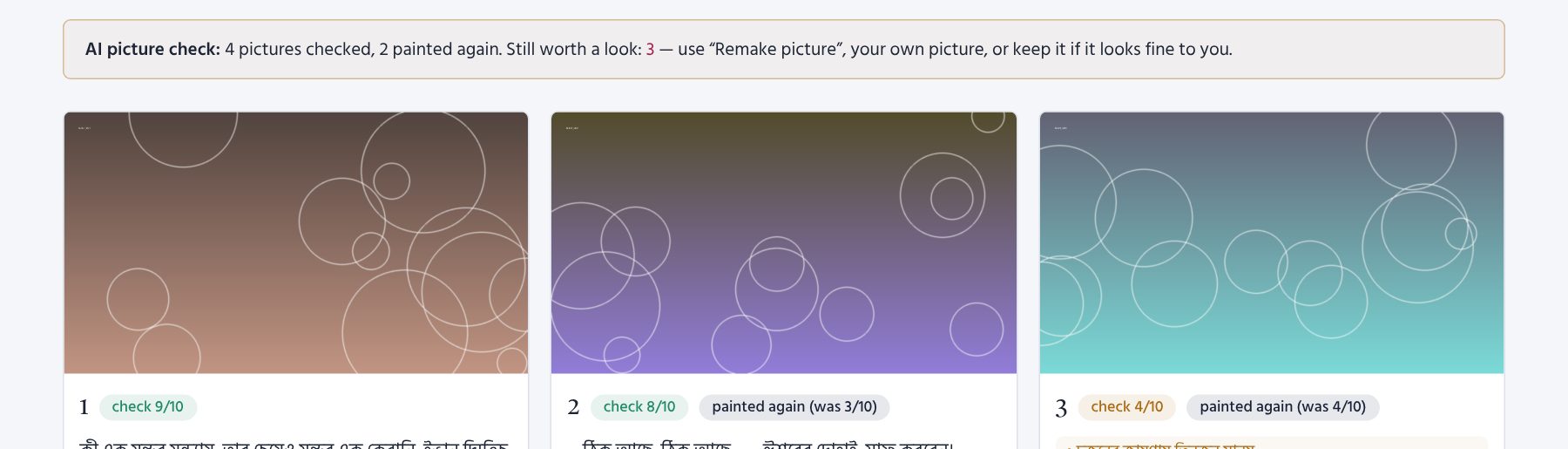
The look also finds where the faces are, so the slow zoom and pan move toward them, and the thumbnail maker's Focus on the faces knows where to crop.
The weakest pictures#
Under the AI picture check on the Shots page, The weakest pictures shows the pictures the check liked least, lowest score first, each with its problems: those with a problem are ticked, then the ones with small flaws (7/10 or less). Tick or untick any — the cost of the ticked ones is shown — and press Paint the ticked ones again now (the film is made again at once, only those pictures are painted), or Only mark them to make the film again later.
Your own pictures and clips#
On the Shots page, Change this shot → My own picture / My own video clip. Your own pictures are free, never checked and never replaced.
Picture style per shot#
- Picture — the painting with a slow zoom or pan.
- Video clip — a free stock clip that fits the shot (needs a Pexels or Pixabay key).
- AI motion — the shot's own picture comes alive as a short video (paid by the second). Under it, Movement lets you say how it should move, in Bengali or English — for example “The girl slowly turns her head; the camera moves towards the window”. Left empty, the movement is gentle and natural. Changing it remakes only that shot's clip.
- Automatic — follows the film's setting.
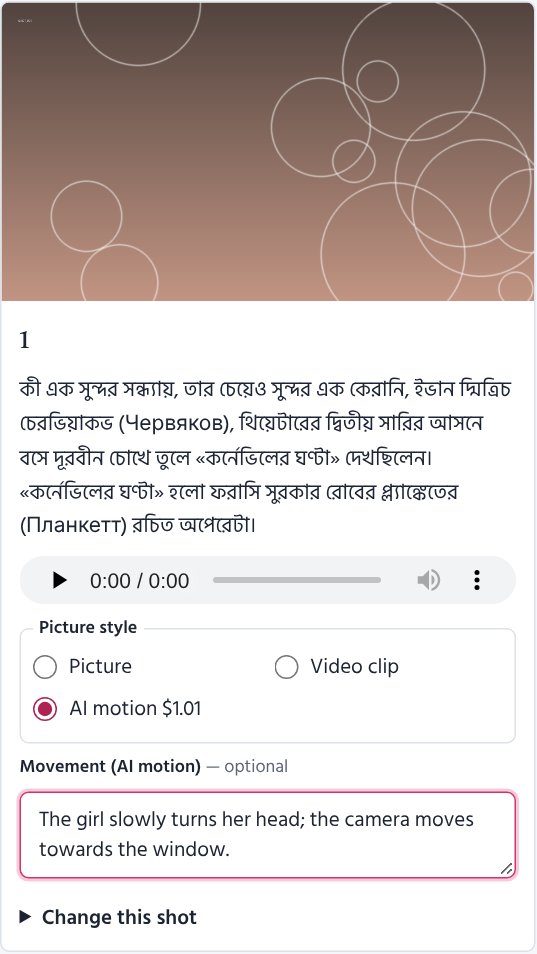
The cost of your choices updates as you change them.
The finished film#
When the film is done, its page shows the video. Download saves it; the subtitles (.srt) come with it.
Two more tabs appear: Publish and Other languages.
Other languages#
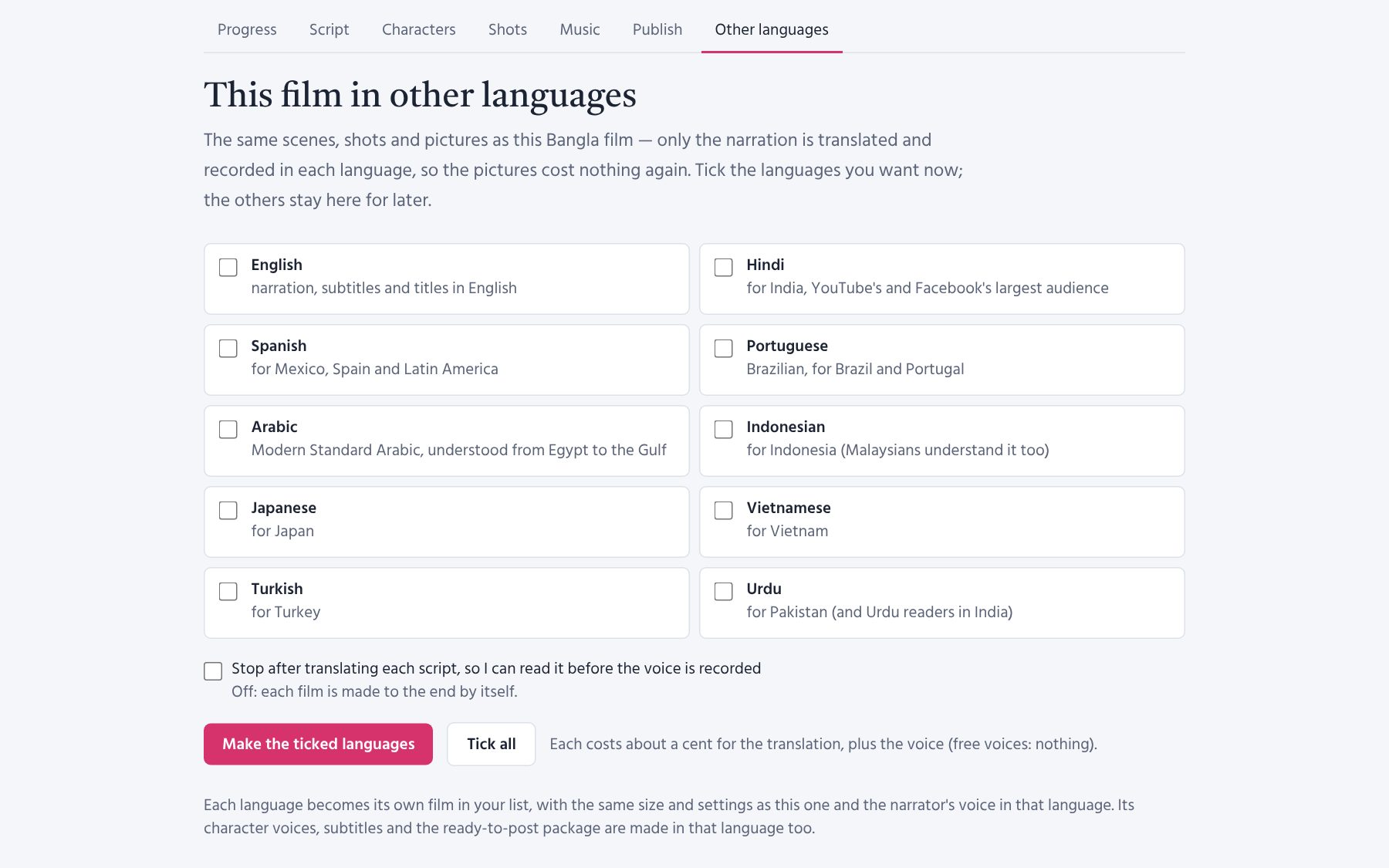
Make the same film in other languages with the same pictures, so they cost nothing again — only the narration is translated (about a cent) and recorded.
- First make the film in one language and check that its voice, music and pictures are right.
- Open Other languages: every other language has a checkbox.
- Tick the ones you want (or Tick all) and press Make the ticked languages.
- Each language becomes its own film in your list, with the same size and settings, a narrator who speaks that language (the same Gemini/Chirp voice, or a voice of that language of the same gender), and its own character voices, subtitles and publishing package.
The languages you leave stay there to tick later; languages already made show their film instead. Tick Stop after translating each script to read each translation before its voice is recorded. If you already have the most films waiting, the rest are made ready and you start them later.
Poem films: a poem can be made in other languages with the same pictures too. The AI translates it as a poem — line for line, with as many lines in each shot as before — so every recited line and subtitle stays with its own picture. For a poem, Stop after translating each script is ticked already: read the translation on the Script tab, polish any words, then continue. The end credits say that the poem is recited in a translation.
Publish: ready for YouTube and Facebook#
The Publish page has everything, in the film's language, with Copy buttons:
- Three titles, the best first.
- The description: a hook, the story (without the ending), chapters from the scenes (YouTube shows them on the video), credits (original story, music, stock footage) and hashtags.
- Tags, a comment to pin, and an English title and description for viewers abroad.
- Three thumbnails (1280 px): the title on the first picture, and a few striking words on two strong pictures from the middle of the story.
- Captions named the way Facebook needs (e.g.
….bn_IN.srt). - Step-by-step instructions for YouTube (audience, altered or synthetic content, language, category, subtitles, end screen) and Facebook (video or Reel, post, captions, thumbnail).
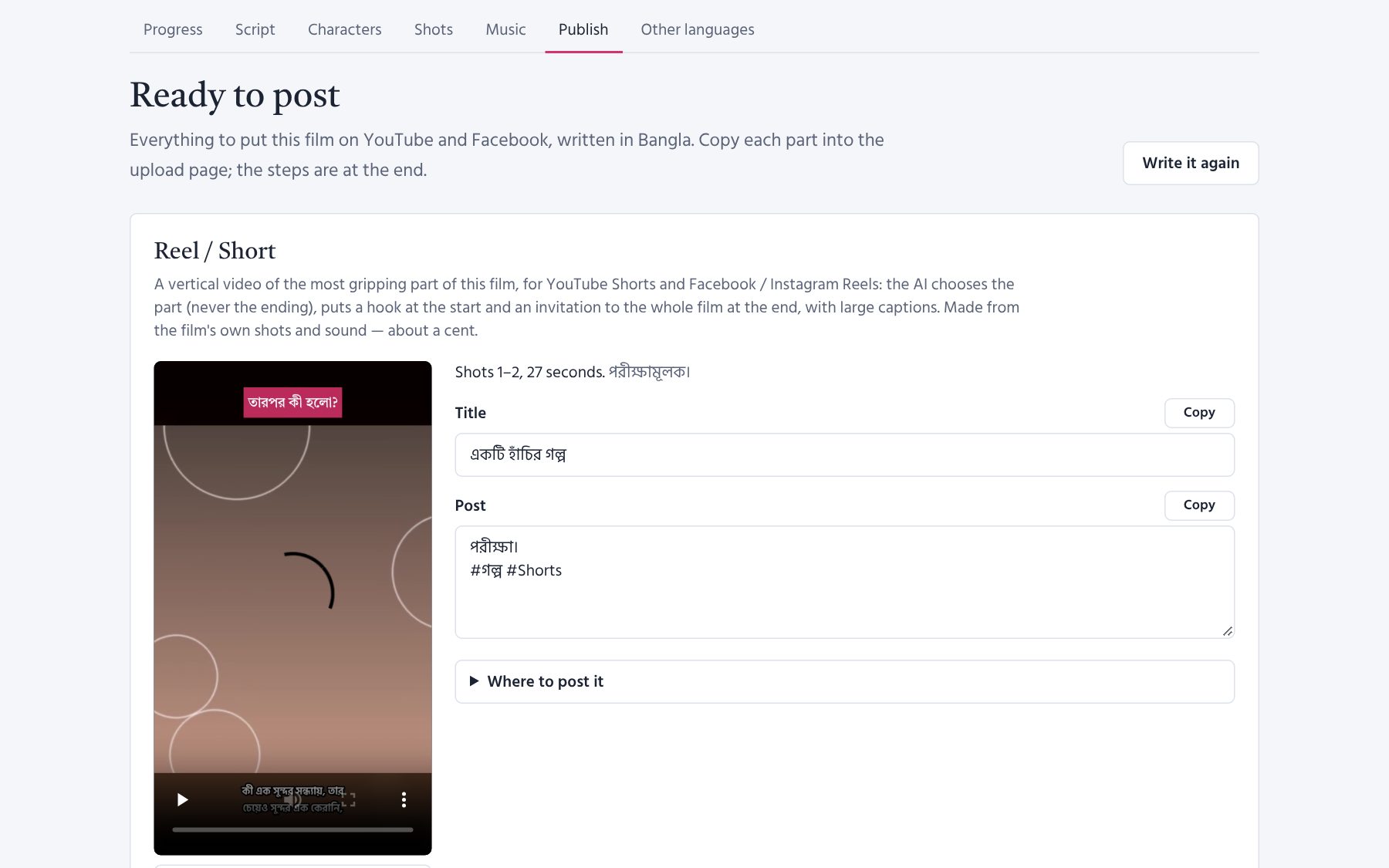
Write it again asks the AI for new words (about a cent); the film is not rendered again.
Your own thumbnail#
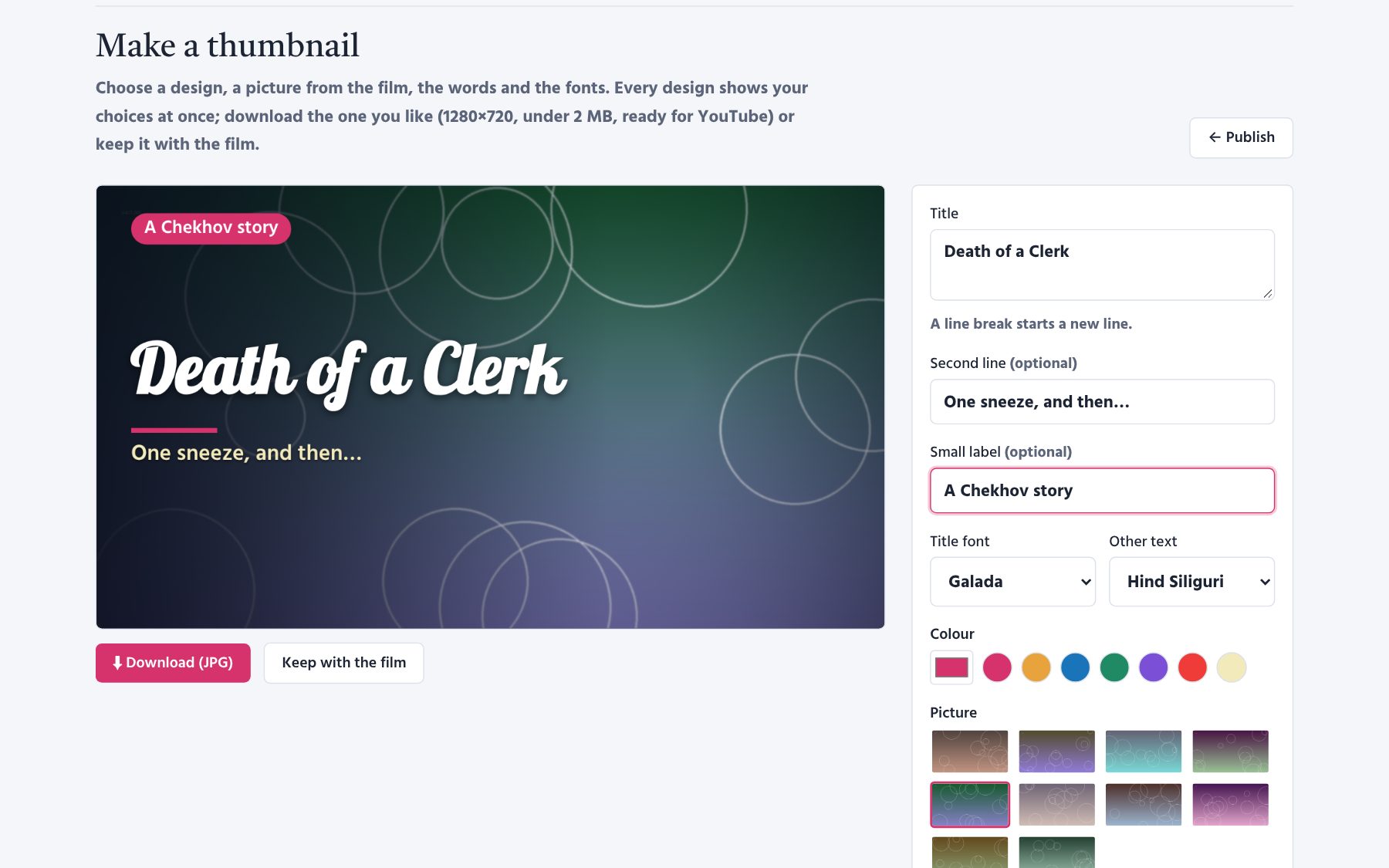
On the Publish page, press Make a thumbnail in the Thumbnail part. There are 38 ready-made designs over the film's own pictures — from classic, glow, side panel, spotlight, highlighter, cinema, neon, two colours, photo print, quotation and film strip to frosted glass, colour block, aurora, magazine, arch, news bar, watermark, sticker, gradient letters and retro sunset. Three pictures and Collage add the film's next pictures to the one you choose.
- On the right, write the Title, a Second line and a Small label (the last two are optional; Enter starts a new line).
- Choose the Title font and the font for the Other text — the list has only fonts with the film language's letters (for Bangla e.g. Tiro Bangla, Galada, Atma, Baloo Da 2, Hind Siliguri; add your own under Settings → Fonts). Below them, choose the thickness of each — Bold, Medium or Normal (some fonts come in one thickness only and change little; in fonts like Baloo Da 2 every thickness is real).
- Choose a Colour and one of the film's Pictures. To use just its best part, raise the Zoom under Zoom and crop and drag the white frame (or the big thumbnail itself); the mouse wheel zooms too, and Reset brings back the whole picture. The pink dot marks where the faces are (as the AI picture check saw them): ◎ Focus on the faces zooms in with them in the middle, and a newly chosen picture starts centred on them — most useful for a vertical thumbnail.
- Click one of the Designs below — every design shows your choices at once.
- Download (JPG) — 1280×720, under 2 MB, ready for YouTube. Or Keep with the film: they stay on this page and on the Publish page (the newest twelve).
Urdu and Arabic films are laid out from the right. Your choices are remembered with the film. It costs nothing — everything is drawn in the browser.
Reel / Short#
On the Publish page, Make a Reel / Short makes a vertical video (1080×1920) of the most gripping part of the film for YouTube Shorts and Facebook/Instagram Reels:
- the AI chooses one continuous stretch (never the ending) and writes a hook shown big at the start, an invitation to the whole film at the end, a title and a post;
- the film's own shots are used — for a wide film a 4:5 part of each, aimed at the faces, over a blurred copy — with the film's own sound and large captions for phones;
- choose about how long (30–90 s), or your own first and last shot; Make it again if you want another part. About a cent.
Before posting#
The story must be free to use (in most countries, the author died more than 60–70 years ago) or you have permission, and your music's licence must allow it.
For the administrator#
Settings → Website (admin) (only for administrators), and Admin in the top bar for everything else.
Sign-up#
Open (anyone can make an account) or Closed (the sign-up links disappear; existing accounts keep working).
Where films are made#
- On users' PCs (Studio Agent) — the default; each user's own keys pay.
- On this server — a worker on the server makes the films one at a time (start the
film_studio_workerservice). It is slower than a PC; 720p is quicker. - User by user — choose differently for single users.
Whose API keys pay for films made on the server#
- The server's own keys (
Film_Studio/.envon the server) with the most one film may cost. - Each user's own keys — entered by the user in Settings, kept encrypted (
SF_KEYS_SECRETinenv.webmust be set before users save keys), never shown, not visible in the Admin.
Other site settings (Admin → Site settings)#
- Films waiting per user — how many films one user may have waiting or running at once.
- A notice shown on every page, and more.
Activity#
Every action is logged: My activity for each user; the Admin sees all, including the cost of each step.
Fonts#
Settings → Fonts adds .ttf / .otf fonts for the film name (title card, thumbnails, Reels); on the server
only the Admin can, and the fonts are then there for everyone. A film that uses one takes it along to the PC
that makes it. Check that a font's licence allows it in videos.

Example pictures of the picture styles#
The style cards on a film's settings page show the same scene painted in every style once you have made them —
once, on your PC, before publish.bat:
.\run.bat styles --examples # 13 pictures; it shows the cost and asks first
They are kept in Film_Studio\assets\style_examples\; publish.bat (copy_film_maker.bat) takes them to the
website with git. Until then the cards show colours. --force paints them all again.
The Studio Agent download and its updates#
Settings → My PC → Download Studio Agent gives a ZIP with the agent and the film maker (about 3 MB) — made
from the website's own copy of the film maker, so run copy_film_maker.bat before each git push. It never
contains a key, a film or anything private. When a newer film maker reaches the website, every PC installed
from the download shows Update next to it; the agent then updates itself before its next film.
Signed updates. copy_film_maker.bat also signs each release with your private release key (made the first
time, kept only on your PC in %USERPROFILE%\.filmstudio\release_key — back it up). The public half,
release_key.pub, goes into git and into every download. An agent installs an update only when it carries this
signature over every file it puts in place, so a broken-into website could not send its own program to the PCs.
Until a release is signed, Settings → My PC says so and offers no Update. Without the private key the agents can
no longer be updated (they would need a fresh download).
Updating the website (Raspberry Pi)#
On your PC, one double-click: publish.bat in FILM_STUDIO_WEB. It copies and signs the film maker, runs a
quick check (stops if something is broken), asks what changed, commits and pushes. With PI_SSH=user@the-pi
in env.web it then updates the Pi over ssh as well (it may ask for the Pi's password).
On the Pi, one command (when publish.bat does not do it for you):
cd /home/FILM_STUDIO_WEB/FILM_STUDIO_WEB && bash deploy/update.sh
It copies the database first, then pulls, installs new packages only when the lists changed, applies database
changes, collects the website's files, restarts film_studio (and film_studio_worker if it is on) and checks
that the website answers. If it does not, it shows the last lines of the log.
Nightly database copy — once on the Pi:
sudo cp deploy/film_studio_backup.service deploy/film_studio_backup.timer /etc/systemd/system/
sudo systemctl daemon-reload && sudo systemctl enable --now film_studio_backup.timer
The copies go to backups/ (the last 30). Better on another disk or a USB stick: add
Environment=BACKUP_DIR=/media/usb/film_studio to the service. To bring one back: stop film_studio, copy
backups/db-<date>.sqlite3 over db.sqlite3, start it again.
Tests on GitHub: if the repository is on GitHub, .github/workflows/tests.yml runs the website's tests after
every push (small offline test films, no cost) and checks that the release is signed.
The command line#
Everything the website does can also be done in a terminal on the PC, in the Film_Studio folder.
The full guide is Film_Studio\HOW_TO_RUN.md.
.\run.bat make "stories\my_story.txt"                    # make a film (standard quality)
.\run.bat make "stories\my_story.txt" --profile premium  # another quality: budget | standard | premium | offline
.\run.bat make STORY --lang en --size reels              # an English, vertical film
.\run.bat estimate "stories\my_story.txt"                # the cost before anything is spent
.\run.bat approve STORY                                  # approve an edited translation
.\run.bat make STORY --from images --force               # make the pictures again (and what follows)
.\run.bat make STORY --only publish --force              # write the posting package again
.\run.bat make STORY --only reel -s reel.seconds=45      # a Reel / Short
.\run.bat make STORY -s images.trial=3 --to images       # three sample shots in the chosen picture style
.\run.bat make POEM -s film.kind=poem -s tts.own_recording=true   # a poem in your own recitation (my_voice\POEM\)
.\run.bat voices --samples                               # make the listening samples of the voices
.\run.bat styles --examples                              # an example picture of each picture style (website cards)
.\run.bat batch stories\                                 # many stories at once
.\run.bat fonts --lang bn                                # the fonts a film name can use (and their letters)
.\run.bat balances                                       # what is left on your AI accounts
Any setting can be changed for one film with -s key=value, for example:
.\run.bat make STORY -s tts.character_voices=true -s images.check_redraw=0 -s video.loudness=-16
The settings and their meaning are in Film_Studio\config.yaml (every line has a comment).
Where things are#
| Folder | What |
|---|---|
stories\ |
your stories (stories\web\ for uploads) |
work\<story>\ |
the script, pictures, voice, clips — everything the film is made from |
output\<story>\ |
the finished film, subtitles, translation, publish\ (posting package, Reel) |
my_images\, my_clips\, my_music\, my_sounds\, my_voice\, my_characters\ |
your own files, per story |
my_fonts\ |
your own fonts for the film name (my_fonts\<story>\: a film's font brought from the website) |
my_voice\<story>\ |
a sample recitation, and from the website: pronunciations.txt, reciter.json, recitation_notes.json |
pronunciations.txt |
your pronunciation list for every film (word = how it sounds) |
work\<story>\04_recitation_plan.json |
the recitation director's reading of a poem; 04_recitation.json: the lines' times in your own recitation |
The Film_Studio folder is found next to FILM_STUDIO_WEB (or the Agent folder of the download). Kept
elsewhere, put FILMSTUDIO_HOME=D:\path\to\Film_Studio in FILM_STUDIO_WEB\env.web; setup.bat,
Start_Agent.bat and copy_film_maker.bat all follow it.
Sending your changes to the website#
In FILM_STUDIO_WEB, double-click publish.bat (or publish.bat "what changed"): it copies and signs the
film maker, runs a quick check, commits, pushes, and — with PI_SSH in env.web — updates the server. See
the Admin chapter.
Troubleshooting and questions#
The badge says "My PC: offline"#
Start Start_Agent.bat on your PC and keep its window open. If it was disconnected, connect it again from
Settings → My PC.
"There is no API key for this AI"#
Put the key in Film_Studio\.env on the PC (or Settings → Your API keys for films made on the server),
then Settings → API keys → Test.
The film stopped: daily limit#
Free and new Gemini keys have a daily limit. The page counts down; press Resume when it ends. Turning on billing in Google AI Studio raises the limits.
The film stopped: budget#
Raise Budget limit on the settings page and resume. Finished work is kept.
The voice does not sound natural#
In Bangla choose a Gemini or Sarvam voice (see Voices). Changing the voice records only the narration again (cents); the pictures stay.
A picture is wrong#
Shots page → Remake picture, or give your own picture. Changing a character's look on the Characters page redraws its portrait; remake the shots that should follow it.
No subtitles in the video#
The ffmpeg on the PC lacks subtitle support: Settings → This PC says so. Install the full build:
winget install Gyan.FFmpeg.
The listening samples do not play#
They are made once with run.bat voices --samples (on a server, copy Film_Studio/assets/voice_samples too).
The film name is not in the font I chose#
- The font has no letters of the film's language: then the language's own font is used (only fitting fonts
are offered, if the PC can check them — run
setup.batonce so it can). - The film was made before the font was chosen: press Make again (no AI cost).
- Settings → My PC shows Update next to your PC: update it first.
"Python is not installed" when starting the agent#
Install Python 3.13 from python.org/downloads, ticking “Add python.exe to
PATH”, then double-click Start_Agent.bat again.
Settings → My PC says the film maker on this PC differs#
The website has a newer film maker than the PC. Installed from the download: press Update. Your own folders:
run copy_film_maker.bat and git on the PC where you develop, or git pull on the other PC.
A shot's narration says something that is not in the text#
The AI that listens records such a shot once more by itself. If the Shots page still shows The narration differs from the text under it, listen, and use Record voice again. If it keeps happening, rephrase the sentence a little on the Script page.
"The update is not signed with your release key"#
The agent refused an update that was not signed. On the PC that holds the release key run copy_film_maker.bat,
then git push, update the website, and press Update again.
"The font … was not found"#
The video used another font. On the settings page choose the font again from the list (it shows the names the video finds), or add the font file in Settings → Fonts, then Make again.
publish.bat stopped#
It stops at the step that went wrong and nothing after it is done. Quick check: a test failed — send its
lines from FAIL: to AssertionError. git push: check the internet and that git can log in. ssh: check
PI_SSH in env.web and the Pi's password, or run bash deploy/update.sh on the Pi yourself.
The style cards show colours, not example pictures#
The examples are made once on the PC with run.bat styles --examples, then publish.bat and update.sh take
them to the website. On the PC that runs the studio itself, close and start the studio again after an update.
A line of my own recitation is in the wrong place#
Open Where the lines were found in your recording on the settings page. Usually the reciter did not pause there,
or said a word that is not in the text: correct the text (one line a line, an empty line between stanzas). Or
change the times in work\<poem>\04_recitation.json on the PC, add "fixed": true, and make the film again.
A stanza is not recited the way I want#
Shots page → A note for the reciter under that stanza ("slower, almost a whisper") → Record this stanza again with the note, then make the film again. Only that stanza is recorded (and paid) again. Tick the box to make it a lesson of the reciter for every later film.
A word in my pronunciation list is still said wrong#
The list changes only what the voice hears, starting with films made (or made again) after the change. Write the
word as it is written in the text — it is found at the start of a word; end it with ! for the whole word only
(ছুটিল! = ছুটিলো). A PC with the Studio Agent needs the update
from 13 November 2026 or later (Settings → My PC → Update).
Can I sell or post the films?#
The pictures and voices are yours to use under the AI services' terms. The story and the music must be free to use or licensed to you. YouTube asks you to mark altered or synthetic content only when pictures look like real camera footage of real people or places.
Where is my film on the PC?#
Film_Studio\output\<story>\ — the video, subtitles, translation and the publish\ folder.