
Checks during making#
The film stops at a few points so you can look before money is spent on pictures and voice. The film's page shows Waiting for you and a button to the right page. Tabs at the top of every film: Progress · Script · Characters · Shots · Music (and, when finished, Publish · Other languages).
Translation#
For a story in another language. Read and correct the translation in the editor, then Approve.
- Name spellings are listed so each name is written the same way everywhere.
- With Check the translation with a second AI on, a second AI compares it with the original and shows a score and notes: left out, added, wrong meaning, names, clumsy wording. Use the suggestion fixes it with one click; Done / not a problem hides the note; Save and check again re-checks your edits.
- A much shorter paragraph than the original is flagged for free (something may be missing).
Length#
The AI suggests a length with its reason. Accept it or type another; the cost updates.
Script#
Every scene and shot with its narration and picture description. You can edit any text, and change the shape: split a shot at the cursor, merge with the next, add or delete shots and scenes, move shots. (The shape can change only before pictures or voice exist.) Then Approve the script.
Characters#
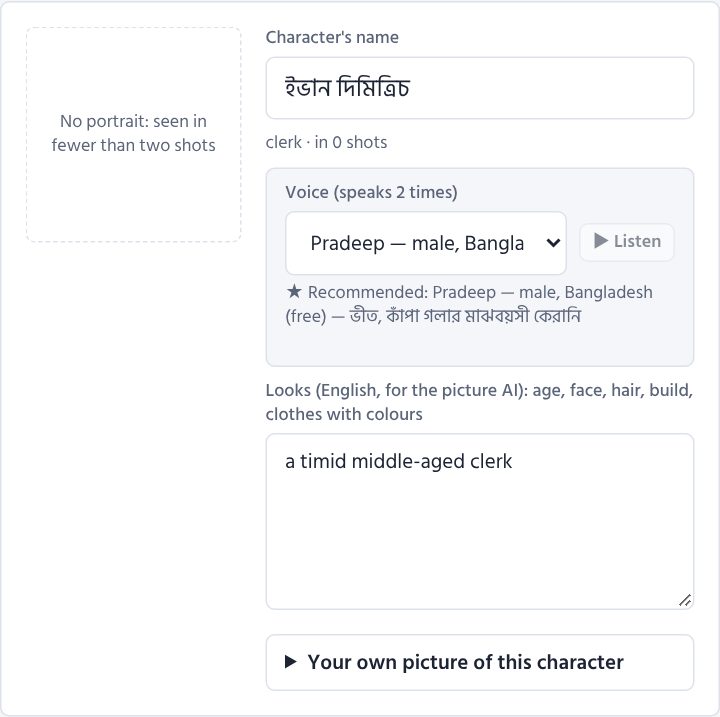
Each character's name, look (English, for the picture AI) and portrait.
- Redraw this portrait, or change the look and save — the portrait is drawn again.
- Your own picture of this character: use it as the portrait (free), or let the AI paint the portrait from it in the film's style.
- Voice (with character voices on): the recommended voice ★ for each speaking character, ▶ Listen, and any other voice to choose. Change voices here before the narration is recorded.
Then Approve and make the shot pictures. Not sure about the picture style yet? Paint sample shots here first (see below).
Shots#
Every shot's picture, narration and voice — during making and after.
- Picture style per shot: automatic, picture, video clip (stock), or AI motion (the picture comes alive).
- Change this shot: your own picture or video clip, Remake picture, Record voice again.
- Sample shots (while the film waits here, before its pictures): three shots painted in the chosen picture style; like them — continue; if not, change the style and ask again (see Making a new film).
- AI picture check: each picture's score; problems in plain words; a list of shots worth a look; and The weakest pictures, lowest score first, to paint again together (see Pictures).
- Poems: the recitation director's reading — the metre and the mood at the top, and how each stanza should be said under it — and A note for the reciter on each stanza (see Voices).
- Narration check: The narration differs from the text under a shot whose recording says more or less than its text (after one automatic retry), and older recording on a recording kept although its text or voice changed; Make everything again → Outdated narration records only those again.
- The voice sounds different in …: the shots whose voice is measured higher, lower, brighter or duller than in the others (a character's quoted words and shots with your note are not counted), each marked voice sounds different; Record these again records only them.
- The recording before: a shot recorded again keeps its earlier recording. Both play under the shot; Keep the one before puts the earlier one back on the next run (no new recording, no cost), No, keep the new one changes your mind.
- Quick draft (top of the page): a small, fast video (480p, no slow zoom) to check the timing, the voice and the subtitles. Shots marked to record again are recorded first; the finished film is not changed. The draft plays at the top of the Shots page; when all is right, Make the film again.
Music#
Upload your own music for the film or per scene. Without your own music, tracks from the music library are chosen to match each scene's mood.
Sound effects#
Your sound library is yours for every film: add a sound with a name (English names like thunder or heavy rain let the AI ideas find it), listen to it, remove it.
To keep a big library easy to search: - Tags — under each sound, write a few words separated by commas, in any language (বৃষ্টি, রাত, শহর or rain, night), then Enter or Save; a new sound can get its tags as it is added. The AI ideas find your sounds by their tags too. - ★ Favourite — press the star beside a sound: favourites come first in the library and in every shot's list. - Search by name or tag filters the list as you type; the tag buttons above it (with how many sounds have each) show only the sounds with that tag — press more than one to narrow it further; ★ favourites shows only your favourites.
Sounds per shot — a row for every shot, with three choices:
- Music — normal; rises slowly (the music swells over about 3 seconds, for a moment that builds up); or rises suddenly (at once, for a shock). Either way it settles back to normal over about 4 seconds after the shot.
- Sound 1 and Sound 2 — two sounds can play in one shot together, e.g. thunder and rain. Click the box: a list opens with a search box — type a few letters of a name or a tag (★ favourites first), ▶ to hear a sound, ↑ ↓ and Enter to choose it; + Upload a new sound… adds one right there. Under each sound choose:
- how loud — loud (a sudden event: thunder, a gunshot, a slammed door), normal (clear, under the voice: a knock, a bell, a dog) or background (an atmosphere, softly: rain, wind, a river, a crowd, birds);
- when — once, at the start (as the shot begins, at most 15 seconds) or through the shot (it repeats for the whole shot; the same sound on the next shots goes on without a break).
For example, a stormy night: shots 11–13 have rain · background · through the shot, and shot 12 also thunder · loud · once, at the start with the music rises suddenly — the rain goes on over the three shots and the thunder claps as shot 12 begins.
AI ideas appear after the film's music step, under each shot's narration (AI: heavy rain · background). Use the AI ideas puts the ones your library has a sound for into empty places — your own choices stay; the ones you have no sound for are listed with a Find free link: download it, add it to your library with the same name, and use the ideas again.
Save the sounds, then Make the film again: only the video is put together again — the sounds cost nothing, and no picture or voice is made again.