
The finished film#
When the film is done, its page shows the video. Download saves it; the subtitles (.srt) come with it.
Two more tabs appear: Publish and Other languages.
Other languages#
Make the same film in other languages with the same pictures, so they cost nothing again — only the narration is translated (about a cent) and recorded.
- First make the film in one language and check that its voice, music and pictures are right.
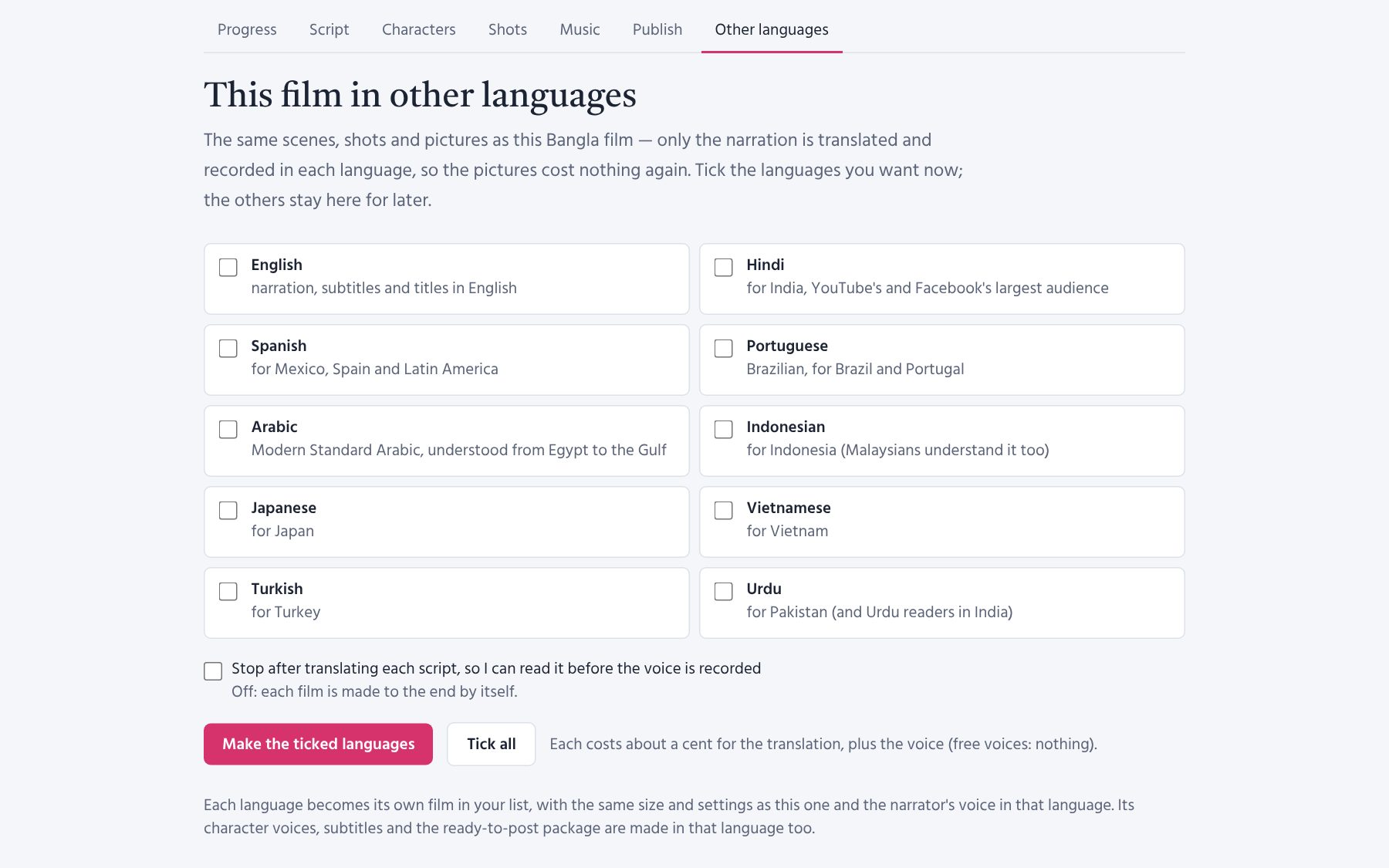
- Open Other languages: every other language has a checkbox.
- Tick the ones you want (or Tick all) and press Make the ticked languages.
- Each language becomes its own film in your list, with the same size and settings, a narrator who speaks that language (the same Gemini/Chirp voice, or a voice of that language of the same gender), and its own character voices, subtitles and publishing package.
The languages you leave stay there to tick later; languages already made show their film instead. Tick Stop after translating each script to read each translation before its voice is recorded. If you already have the most films waiting, the rest are made ready and you start them later.
Poem films: a poem can be made in other languages with the same pictures too. The AI translates it as a poem — line for line, with as many lines in each shot as before — so every recited line and subtitle stays with its own picture. For a poem, Stop after translating each script is ticked already: read the translation on the Script tab, polish any words, then continue. The end credits say that the poem is recited in a translation.
Publish: ready for YouTube and Facebook#
The Publish page has everything, in the film's language, with Copy buttons:
- Three titles, the best first.
- The description: a hook, the story (without the ending), chapters from the scenes (YouTube shows them on the video), credits (original story, music, stock footage) and hashtags.
- Tags, a comment to pin, and an English title and description for viewers abroad.
- Three thumbnails (1280 px): the title on the first picture, and a few striking words on two strong pictures from the middle of the story.
- Captions named the way Facebook needs (e.g.
….bn_IN.srt). - Step-by-step instructions for YouTube (audience, altered or synthetic content, language, category, subtitles, end screen) and Facebook (video or Reel, post, captions, thumbnail).
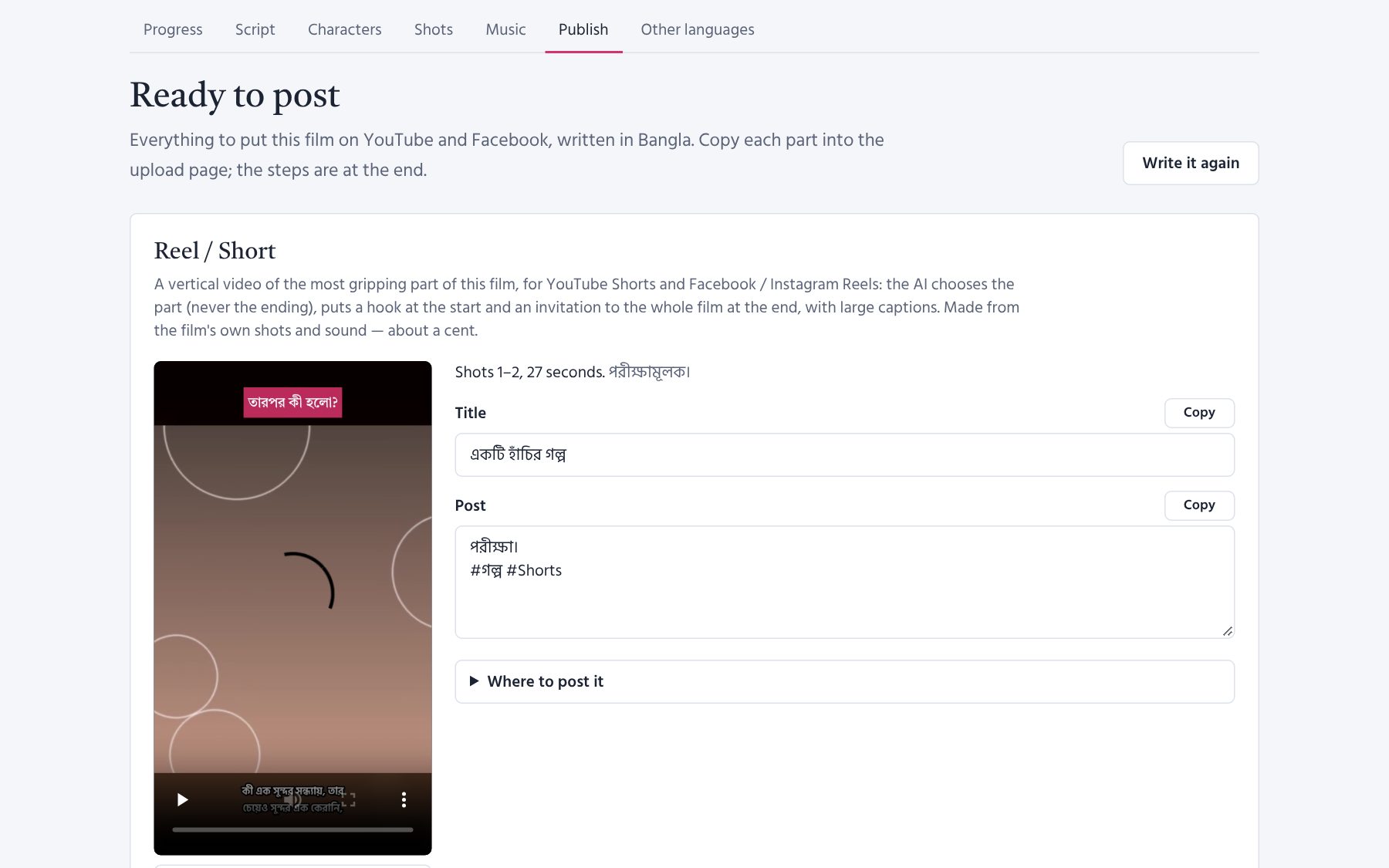
Write it again asks the AI for new words (about a cent); the film is not rendered again.
Your own thumbnail#
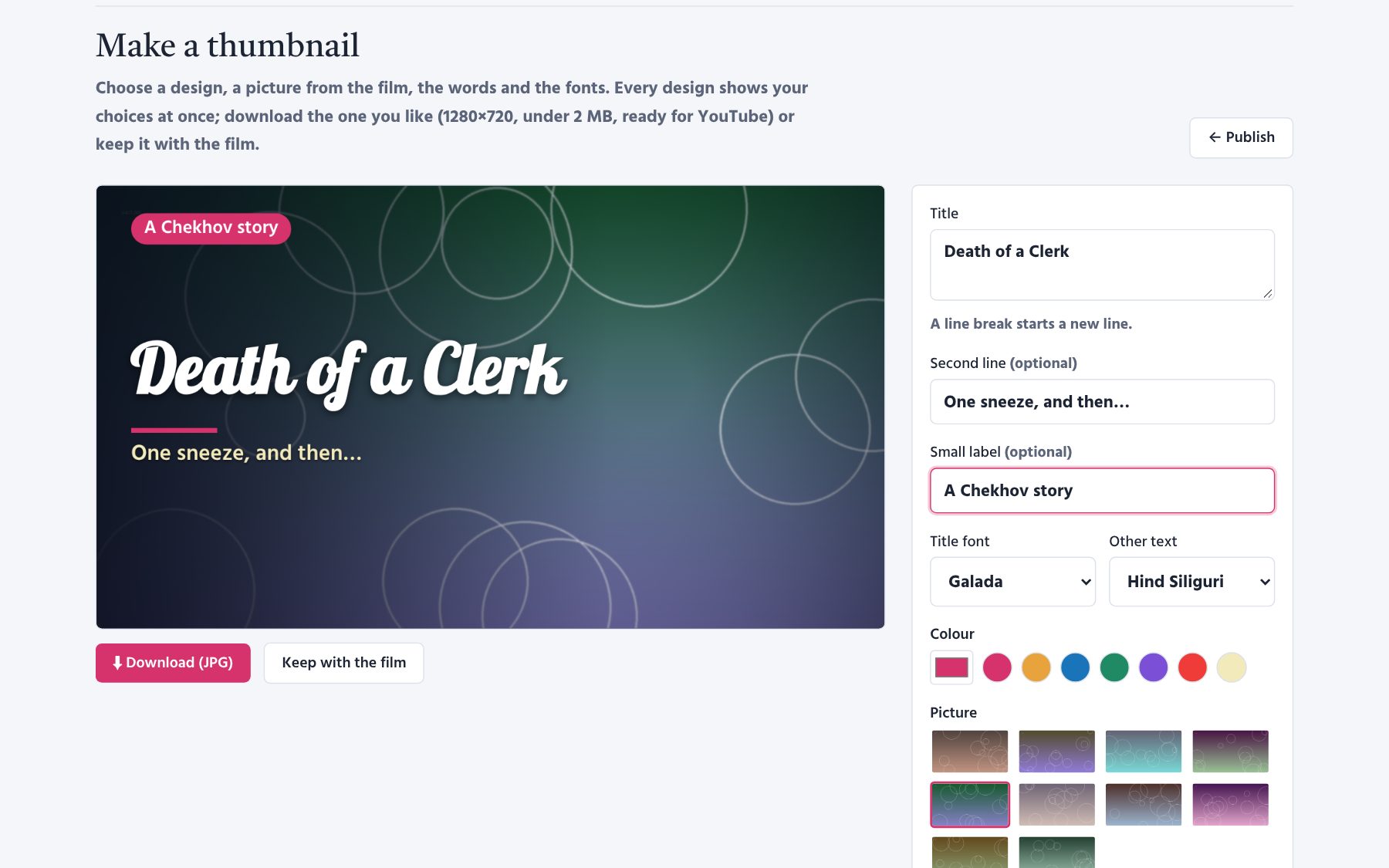
On the Publish page, press Make a thumbnail in the Thumbnail part. There are 38 ready-made designs over the film's own pictures — from classic, glow, side panel, spotlight, highlighter, cinema, neon, two colours, photo print, quotation and film strip to frosted glass, colour block, aurora, magazine, arch, news bar, watermark, sticker, gradient letters and retro sunset. Three pictures and Collage add the film's next pictures to the one you choose.
- On the right, write the Title, a Second line and a Small label (the last two are optional; Enter starts a new line).
- Choose the Title font and the font for the Other text — the list has only fonts with the film language's letters (for Bangla e.g. Tiro Bangla, Galada, Atma, Baloo Da 2, Hind Siliguri; add your own under Settings → Fonts). Below them, choose the thickness of each — Bold, Medium or Normal (some fonts come in one thickness only and change little; in fonts like Baloo Da 2 every thickness is real).
- Choose a Colour and one of the film's Pictures. To use just its best part, raise the Zoom under Zoom and crop and drag the white frame (or the big thumbnail itself); the mouse wheel zooms too, and Reset brings back the whole picture. The pink dot marks where the faces are (as the AI picture check saw them): ◎ Focus on the faces zooms in with them in the middle, and a newly chosen picture starts centred on them — most useful for a vertical thumbnail.
- Click one of the Designs below — every design shows your choices at once.
- Download (JPG) — 1280×720, under 2 MB, ready for YouTube. Or Keep with the film: they stay on this page and on the Publish page (the newest twelve).
Urdu and Arabic films are laid out from the right. Your choices are remembered with the film. It costs nothing — everything is drawn in the browser.
Reel / Short#
On the Publish page, Make a Reel / Short makes a vertical video (1080×1920) of the most gripping part of the film for YouTube Shorts and Facebook/Instagram Reels:
- the AI chooses one continuous stretch (never the ending) and writes a hook shown big at the start, an invitation to the whole film at the end, a title and a post;
- the film's own shots are used — for a wide film a 4:5 part of each, aimed at the faces, over a blurred copy — with the film's own sound and large captions for phones;
- choose about how long (30–90 s), or your own first and last shot; Make it again if you want another part. About a cent.
Before posting#
The story must be free to use (in most countries, the author died more than 60–70 years ago) or you have permission, and your music's licence must allow it.